1. The Era of Automation: Solutions for Disconnected Office Applications
Every day, an average office worker spends up to 2.5 hours just performing meaningless "copy-paste" tasks. Be honest: How many times have you repeated this tedious scenario? Receiving an email from a customer, copying information into Google Sheets, typing a notification on Slack, and then creating a new task on Trello. This sequence of disconnected manual actions is exactly the "swivel-chair syndrome" – a silent enemy that erodes labor productivity and kills employees' creativity.
With the boom of SaaS software, we accidentally confine ourselves in isolated data silos. Businesses do not lack good tools; what businesses lack is the connection between them. Optimizing performance with no-code tools is no longer a luxury choice, but has become a core survival capability to free up resources for tasks that actually create value.
"Process automation is not about replacing humans, but about returning humans to their proper place of cognitive work, leaving mechanical operations to self-operating machines."

To solve this painful problem, two leading "conductors" today, Zapier and Make (formerly Integromat), appear as the ultimate saving solutions. Without needing to know a single line of code, without requiring complex IT support, anyone can build automated workflows with just intuitive drag-and-drop clicks.
| Comparison Criteria | Zapier: The Lean Pioneer | Make (Integromat): The Master of Multi-tasking Logic |
|---|---|---|
| Ease of Use | Extremely intuitive linear interface, set up workflows in just a few minutes. | Mindmap-style interface, requiring initial learning time. |
| Logic Processing Capability | Good for simple workflows (If input data is A, perform action B). | Extremely powerful with complex logic branching, deep data filters, and nested loops. |
| Connected Ecosystem | Over 6,000 pre-integrated applications, absolute stability. | Over 1,500 applications but allows very flexible direct API customization. |
| Operating Costs | Quite high as the scale of tasks increases during the month. | More budget-friendly, allowing thousands of tasks to run at a reasonable cost. |
Choose Zapier if you need speed and simplicity to immediately solve daily tasks. Choose Make if you want to build deep automated operating systems, processing millions of complex data fields for the entire organization. Shifting to no-code automation is the first step to turning a traditional office into a smart, zero-latency operating machine.
2. Zapier vs. Make: Where Should You Start?
If you are wasting 3 hours a day just copy-pasting data between CRM, Gmail, and Google Sheets, you are personally holding back your business growth. Automation is no longer an option; it is a race for survival. When stepping into the world of "no-code automation," you will undoubtedly encounter two giants: Zapier and Make (formerly Integromat). Choosing the wrong tool from the start will cost you thousands of dollars in operating expenses and hundreds of hours fixing system errors.
"Zapier is like an easy-to-drive automatic car that takes you from point A to point B without thinking. Make, on the other hand, is an F1 race car: extremely powerful, infinitely customizable, but requiring you to know how to control the steering wheel."
To make the smartest decision, let's dissect these two platforms through a practical technical and financial lens.
User Interface: Minimalist Simplicity vs. Visual Mind Map
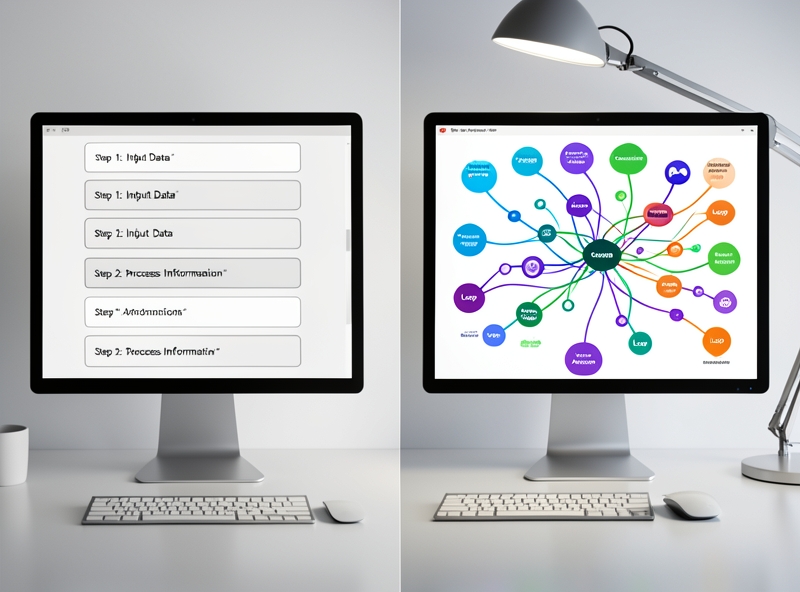
Zapier uses a linear vertical list setup structure. You select a trigger app, then choose the next action. Everything is as clear as an instruction manual. The big plus is that this interface is extremely beginner-friendly, requiring no programming logic thinking.
Conversely, Make throws you into an infinite workspace (Canvas). Here, you connect applications through drag-and-drop bubbles (Modules), creating a tangled network of connections. This visual interface allows you to see the entire data flow instantly. However, Make's barrier to entry is higher: you can easily get overwhelmed if you are not used to organizing data in a mind map format.
Workflow Complexity: Simple Single-Branch vs. Complex Multi-Branch
If you only need: "When a new customer registers on Typeform, save the information to HubSpot and send a Slack message," Zapier solves it cleanly in 3 minutes. But when workflows get more complex, Zapier starts to show its limitations. Handling arrays, loops, or complex conditional branching on Zapier is extremely cumbersome and resource-intensive.
Make was born to handle tough problems. With powerful Routers, Make allows you to branch data unlimitedly, processing bulk data (Iterator/Aggregator) within a single scenario. Make's ability to parse JSON/XML data is so strong that you can build a miniature ERP system right on this platform.
| Comparison Criteria | Zapier | Make (Integromat) |
|---|---|---|
| Approach Method | Linear step-by-step list | Visual drag-and-drop on Canvas |
| Number of Integrated Apps | Over 6,000+ apps (Market leader) | Over 1,600+ apps (Excellent HTTP/API support) |
| Complex Data Processing | Fairly limited, complex filter configuration | Extremely powerful with Router, Iterator, Aggregator |
| Starting Cost | Quite expensive (Free plan limited to 100 tasks/month) | Extremely economical (Free plan with 1,000 operations/month) |
App Compatibility: Quantity vs. Depth of Connection
Zapier wins absolutely in terms of quantity with its massive connection library. Almost every newly launched SaaS software prioritizes integrating with Zapier first. If your business uses many niche, less popular tools, Zapier is your safest insurance ticket.
While Make has fewer pre-integrated apps, in return, each of Make's apps offers outstanding connection depth. In particular, if an app is not directly supported by Make, you can completely connect it yourself via the HTTP/Make an API call module. With Make, as long as the target app has an open API port, you can do anything.
The Cost Problem: The "Task" and "Operation" Trick
This is the key point that decides your choice. Zapier charges based on each successfully run Task. If you run a workflow sending 100 emails to 100 customers, you lose 100 tasks. Zapier's cost increases very quickly when your workflow starts to scale up, easily consuming hundreds of USD per month.
Make charges based on Operation (the activity of each individual module). It might sound like more, but Make's conversion value is 5 to 10 times cheaper than Zapier for the same data processing performance. Make's basic paid plan starts at an extremely accessible price, allowing you to run tens of thousands of operations per month without worrying about breaking the bank.
Practical Advice: Where Should You Start?
- Choose Zapier if: Budget is not your biggest barrier. You want fast automation, simple workflows (under 5 steps), and have no dedicated tech staff. You need absolute stability and the fastest setup speed possible.
- Choose Make if: You need to build complex, multi-branch workflows that need to handle large volumes of data daily. You have good logical thinking (or are willing to learn) and want to optimize operating costs to the maximum.
3. Step-by-Step Guide to Setting Up a Basic Automation Workflow with Zapier
Every day, how many hours are you or your staff wasting just doing repetitive tasks: copying customer information from a registration form, pasting it into an Excel file, and then opening Gmail to draft an identical reply email? This is the silent "leak" draining productivity and making it easy for operational errors to occur. Zapier was born to eliminate that manual work. With just 10 minutes of setup, you will own a "digital assistant" that works tirelessly 24/7, processing data with absolute accuracy without writing a single line of code.
"Automation doesn't take away your job; it frees you from repetitive tasks so you can focus on decisions that generate real revenue."
Before getting started with the installation, you need to understand two core concepts that determine every automation scenario:
- Trigger: The "fuse" that starts the cycle. When this event occurs (For example: a new customer fills out a form), the system will automatically run.
- Action: The automatic result that happens immediately after the Trigger. A Trigger can lead to one or multiple consecutive Actions (For example: Saving information to an Excel file and sending a confirmation email).

Below is a detailed step-by-step guide to setting up a practical workflow: Automatically save information from Google Sheets (synced from a Registration Form) and send a confirmation email via Gmail.
Step 1: Prepare the input data source
Create a Google Sheet with basic information columns: Full Name, Email, Phone Number. Fill in a sample row of data (e.g., Nguyen Van A, [email protected]) to serve as test data for Zapier to detect.
Step 2: Set up the Trigger (Google Sheets)
Log in to Zapier, select Create Zap. In the App search box, select Google Sheets. Under "Event", select New Spreadsheet Row. Click Continue. Connect your Google account, and select the correct file and sheet (Worksheet) you prepared.
Step 3: Test the Trigger (Test step) - A critical step
Click the Test Trigger button. Zapier will scan your Google Sheets file to find the sample row of data just created in Step 1. When the screen correctly displays the data fields like Full Name, Email, you have successfully set up the "trigger". This step is extremely important to ensure the transmitted data does not have structural errors.
Step 4: Set up the Action (Gmail)
Click on the plus (+) icon below the Trigger step to add an Action. Select the Gmail app and choose Send Email as the Event. After connecting your Gmail account, proceed to configure the email content:
- Under To (Recipient): Click and select the dynamic Email data field pulled from the Google Sheets step.
- Under Subject and Body: Draft the content to send to the customer, and you can directly insert the Full Name field to personalize the email (For example: "Hello {Full Name}, we have received your registration information").
Step 5: Test the entire workflow and activate
Click Test Action. Check the inbox of the test email. If the email appears immediately with the correct content and no font errors, congratulations, you have finished. Click Publish Zap to activate the workflow to run automatically forever.
4. Upgrading Multitasking and Complex Logical Condition Handling with Make
Every second of delay in responding to VIP customers is a step backward that drags down business revenue. When operations are overwhelmed by hundreds of support requests pouring in daily, processing every information funnel equally will turn golden opportunities into crises. Systems cannot self-classify, staff must check manually, and the consequence is thousand-dollar contracts left forgotten in endless queues.
To thoroughly resolve this pain point, applying a Router on the Make platform (formerly Integromat) is the master key that helps businesses multitask, automating the entire data classification and processing workflow in real time.
"Don't make VIP customers line up with regular requests. Let Make's logical algorithms automatically clear the path for your million-dollar deals."

Guide to Configuring an Automated Support Request Routing Scenario
Below is the 4-step process to set up an advanced scenario that filters and classifies VIP and regular customers as soon as a support request is received.
- Step 1: Set up the Trigger Module - Receiving Input Requests
- Select the Google Forms (Watch Responses) or Typeform module to capture all the latest support requests from customers.
- Connect your account and select the correct form to monitor. The input data format includes mandatory fields: Full Name, Email, Phone Number, Support Content, and Service Package (VIP/Standard).
- Step 2: Integrate the Router Module
- Immediately after the trigger module, add a Router module. The Router will automatically split the processing flow into independent branches based on the logical conditions you set up.
- Step 3: Configure the High-Priority Branch for VIP Customers
- Set up a Filter: Click on the wrench icon on the first branch connecting from the Router. Name the filter "Is VIP". In the condition box, select the
Service Packagevariable from the input module, set the comparison operator toEqual to (case insensitive), and enter the value asVIP. - Connect the Slack Module (Create Instant Alerts): Add a Slack (Create a Message) module. Configure it to send an alert message directly to the
#urgent-supportchannel with the bolded content:🔥 VIP CUSTOMER NEEDS URGENT SUPPORT: [Customer Name] - [Request Content]. - Connect the Trello Module (Create Urgent Task Cards): Add a Trello (Create a Card) module right after Slack. Select the engineering team's board, put the card in the "To Do" column, attach a red label (High Priority), and set the completion deadline (Due Date) to 2 hours from receiving the request.
- Set up a Filter: Click on the wrench icon on the first branch connecting from the Router. Name the filter "Is VIP". In the condition box, select the
- Step 4: Configure the Standard Branch for Regular Customers
- Set up a Filter: On the second branch connecting from the Router, set up a filter named "Is Standard". Select the condition where the
Service Packagevariable matches the valueStandard, or set up a default route (Fallback route). - Connect the Storage and Queueing Module: Add a Google Sheets (Add a Row) module to automatically populate customer information into a waiting list in chronological order, ensuring no one is missed while maintaining the business's correct priority order.
- Set up a Filter: On the second branch connecting from the Router, set up a filter named "Is Standard". Select the condition where the
| Comparison Criteria | Traditional Manual Process | Automation with Make Router |
|---|---|---|
| Classification Speed | 15 - 30 minutes (staff reading and filtering emails) | Under 2 seconds (fully automated) |
| VIP Customer Miss Rate | 10% - 15% due to overload or personal error | 0% (absolute precise routing) |
| Alert Notification Channels | Sending internal emails, messages easily get lost | Ping directly to Slack, create task cards immediately on Trello |
| Scalability | Limited by headcount and staff performance | Unlimited, processing tens of thousands of requests simultaneously |
By mastering Make's Router feature, your business not only optimizes labor productivity but also builds a solid protective barrier for the experience of your highest-value customers. Stop handling work by instinct and start systematizing it with automation technology today.
5. Golden notes to keep your automated workflows running smoothly without errors
More than 90% of office automation systems break down within the first week not because of weak technology, but because the creator lacks a defensive mindset. As someone who directly operates and troubleshoots hundreds of workflow bottlenecks, I understand the feeling of helplessness when waking up one morning to find the entire customer email sending system frozen, CRM data out of sync, and the Zapier account flashing red errors. For technology to truly liberate labor rather than create more nameless chores, you must keep these 4 vital principles in mind.

1. Set up proactive alert systems (Error Handling)
Don't wait until customers complain to check for errors. A professional automated workflow must have an exception handling branch. Instead of letting the system silently stop working when encountering an error (for example, incorrect email format, lost internet connection), set up smart filters:
- Use the Path/Router feature in tools like Make or Zapier to branch when empty data is detected.
- Set up instant notifications via Slack or Telegram Bot whenever an error occurs (Error Alert). The warning message must clearly state: Name of the failed workflow, the failed step, and the specific reason so you can handle it in 30 seconds.
2. Strictly manage task/operation limits
Many small businesses take advantage of free accounts of automation tools and "weep" when the system suddenly stops working in the middle of the month due to crossing the plan limit (Limit reached). Manage it smartly by:
| Strategy | How it works | Practical efficiency |
|---|---|---|
| Filters at the source (Filter) | Only allow data that meets the criteria to go deeper into the workflow. | Saves up to 40% of wasted Tasks. |
| Data batching (Batching) | Group multiple rows of data in Google Sheets into a single send instead of running each row individually. | Reduces the number of Operations consumed on Make/Zapier by 5-10 times. |
| Time spacing (Delay) | Set delay times between steps to avoid account suspension due to spamming. | Avoids exceeding the API Rate Limit of major platforms. |
3. Absolute security when connecting APIs
Connecting APIs is like handing over a master key to software. A small loophole can leak your entire customer list or sensitive financial data. Adhere to three ultimate security principles:
"Never share API Keys directly via email or store them in plain text. Always assign the Principle of Least Privilege to linked applications."
If a tool only needs "Read" permission (Read-only), never grant "Write" or "Delete" permissions. In addition, schedule API Key rotation every 3 months to eliminate any risk of external intrusion.
4. Standardize input data (Data Standardization)
The most common cause of frozen automation scenarios is bad input data. Customers enter phone numbers sometimes with spaces, sometimes with dots, sometimes missing the leading zero; or they type their names in lowercase without accents. Robot systems will not understand these variations.
Solve this pain point thoroughly by standardizing right at the registration form. Use validation features for phone numbers and emails. For intermediate steps, leverage the built-in text conversion functions (Formatter) of the automation tool to automatically capitalize the first letters, standardize date formats (YYYY-MM-DD), and remove extra spaces before pushing to the CRM system.
6. Conclusion
Are you spending up to 80% of your daily time just repeating meaningless manual tasks like copying and pasting data, downloading email attachments, or updating periodic reports? This is the productivity "trap" that is silently eroding your creativity and career advancement opportunities. In the era of modern office technology, the only difference between an exhausted, overworked employee and a hands-free professional is the ability to master automation tools like Zapier and Make.
Successfully integrating these two no-code platforms into your work is not merely about installing software. It is a mindset revolution that helps you fully break free from repetitive tasks, saving an average of 15 to 30 working hours per week. More importantly, the automation system operates continuously 24/7 with a zero error rate, completely eliminating subjective human errors caused by fatigue or distraction.

"The winner in the digital age is not the one who works the hardest by hand, but the one who knows how to turn technology into the most diligent 'virtual employees'."
Don't wait until a pile of deadlines crushes you to start changing. Set up your very first automation workflow today. Start with extremely simple scenarios:
- Automatically save attachments from Gmail to Google Drive.
- Automatically push notifications to internal chat groups when a customer fills out a registration form on the website.
- Automatically sync appointments from email to Google Calendar.
Every workflow you successfully set up is a brick building an automated operating system, helping you regain control of your time and focus your resources on work that delivers the highest core value to your organization.