1. The Visual Revolution: From Static Slides to Immersive Cinematic Experiences
Every day, millions of meeting rooms around the globe suffer from collective "sleepiness" due to text-heavy presentation slides, stagnant charts, and jerky page-transition effects from the previous decade. Death by PowerPoint is no longer a joke – it is a classic waste of resources, time, and business opportunities for every enterprise. When the attention span of modern humans has dropped below 8 seconds, forcing an audience to read quiet, static slides is like forcing them to read a phone book.
The era of modern office design has killed that outdated mindset. An outstanding presentation slide today no longer serves as a "document read aloud" for the speaker, but must be an immersive cinematic masterpiece, where the message is presented visually, smoothly, and with deep emotion.
To achieve this leap, leading presentation designers are using two ultimate "weapons" integrated right into modern presentation software: Morph and Trigger. They are not merely effects; they are cinematic motion thinking.
- Morph (Magical Transformation Effect): Instead of abrupt cuts, Morph automatically analyzes objects between two slides (images, shapes, text) and creates a smooth, continuous transition movement. It creates the feeling of a camera zooming in, rotating angles, or gliding through an endless 3D space. Viewers do not feel like they are moving to a new page; they sense a flawless flow of information.
- Trigger (Smart Interaction Activation): Turns a one-way presentation into an Interactive Game. By assigning a Trigger command, a click anywhere on the screen will trigger a specific action: showing an analysis table, opening an explanatory dialog, or running an illustrative video instantly. The speaker completely controls the story flow based on the audience's direct reaction instead of following a rigid linear path.
"The difference between an amateur presentation and a million-dollar pitch lies in how the message moves. Physical movement creates psychological emotion."
| Comparison Criteria | Traditional Static Slide Mindset | Cinematic Experience (Morph & Trigger) |
|---|---|---|
| Logical Flow | Linear, going from page 1 to the last page in one direction. | Non-linear, multi-dimensional interaction based on real-time developments. |
| Transitions | Abrupt (Fade, Wipe), interrupting the viewer's train of thought. | Continuous, smooth, shaping spatial depth (3D-like). |
| Retention Power | Medium to low, easily causing distraction after the first 5 minutes. | Absolute, stimulating curiosity and maintaining high concentration. |
| Applicability | Dry data reports, bulleted lists. | Brand storytelling, product demonstrations, large project pitching. |
Mastering these motion tools does not require you to be a professional filmmaker or a complex programmer. Everything is already available in the latest versions of PowerPoint, Keynote, or Google Slides. Shifting from static slides to a cinematic experience is the most cost-effective investment to elevate your professional status and increase conversion rates in every deal.
2. Mastering the Morph Effect: The Art of Seamless Transformation and Transition
Hours spent setting up complex frame-by-frame animations are the "black hole" devouring your productivity. Clients and managers are tired of choppy, unprofessional slide transitions. Morph emerges as a revolution that completely changes how visual presentations are designed, turning boring static slides into a smooth cinematic experience with just a few clicks.
The core principle of Morph is incredibly simple: defining the start and end points. Instead of forcing you to draw paths for objects, Morph automatically calculates changes in position, size, color, and rotation angle of an object from Slide A (start point) to Slide B (end point). You only need to duplicate the slide, move the object to its new position, and apply the Morph effect. The built-in artificial intelligence will automatically fill in the blank frames to create perfect linear motion.
"Morph is not just a transition effect; it is the ultimate visual storytelling mindset, where automation technology completely unleashes your creativity."
Unlocking the "!!" Technique for Shape-Shifting
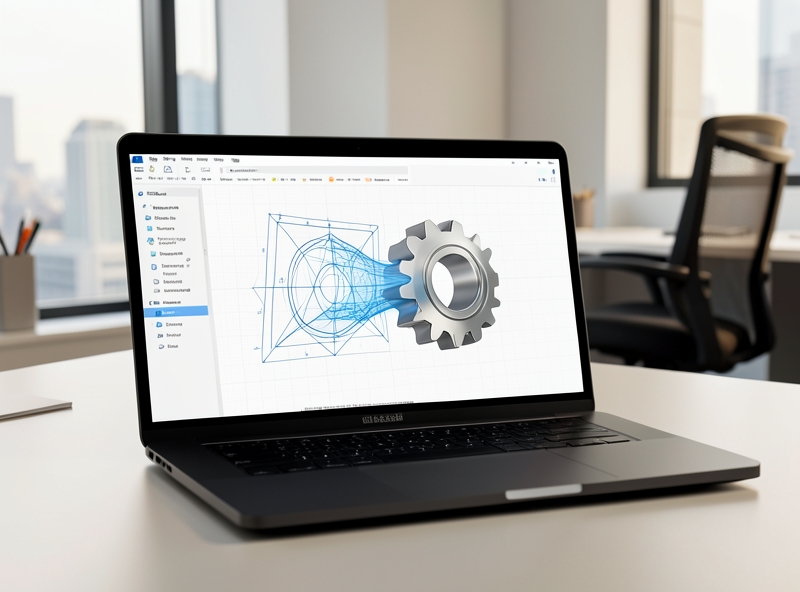
If you only use standard Morph, you can only move or resize identical objects. When you want to transform a circle into a star or one icon into another, PowerPoint defaults to a Fade transition. To break this limitation, you need to use a special naming "code."
The secret lies in the Selection Pane tool (Home > Select > Selection Pane). Rename two different objects on two consecutive slides according to this rule: start with two exclamation marks "!!" followed by the exact same name (e.g., !!transform). Upon recognizing this special character set, the Morph algorithm is forced to bend connection points and stretch edges to transform the object's shape in the smoothest way possible.
Practical Applications: Map Zooming and Infinite Timeline Techniques
To optimize the audience's visual experience, apply Morph to these two classic scenarios:
- Map Zoom-in/Zoom-out Technique: Never crop regional maps into multiple separate images. Insert a high-resolution, oversized map image on the first slide. On the next slide, zoom in on that image 5-10 times, focusing on a specific coordinate. Morph will automatically create a "camera pan" and zoom effect, just like you are navigating on Google Maps.
- Creating a Seamless Moving Timeline: Design a continuous long timeline that extends beyond the boundaries of the slide. On each subsequent slide, simply move this entire timeline to the left to reveal the next event milestone. The audience will feel like they are riding an express train along the historical timeline of the project.
| Comparison Criteria | Traditional Effects (Fade, Fly In, Path) | Super Morph Effect (Optimized) |
|---|---|---|
| Setup Time | Very long, requires manual alignment of every second and coordinate. | Extremely fast, takes only a few seconds after duplicating the slide. |
| Smoothness | Prone to being choppy and unnatural without experience. | Achieves 60fps cinematic standards with smart automatic frame interpolation. |
| Transformation Capability | Only moves or simply appears. | Transforms shape, color, size, and rotation angle simultaneously. |
By mastering these techniques, you not only save 80% of your slide design time but also create highly persuasive presentations that keep the audience engaged from the first second to the very last.
3. Trigger Technique: Turning Viewers into Active Experiencers
More than 90% of office presentations today still operate like a boring page-turner. The speaker presses "Next", the slide moves, and the audience passively receives information according to a pre-planned script. This outdated linear thinking is the silent "killer" of customer and partner attention in just the first 5 minutes. To break that passive state, top slide design experts use an ultimate weapon: Triggers in PowerPoint.
A trigger is a setup technique where an animation effect only occurs when you click precisely on a designated object on the slide, rather than clicking aimlessly anywhere on the screen. This is the core foundation for creating a Non-linear Presentation. Instead of following a fixed path from Slide 1 to Slide 10, you can turn your slide into an interactive interface like a website, where the audience decides what content they want to see first by clicking directly on menus or functional buttons.
"In the digital age, audiences do not want to be led passively. They want to explore. The Trigger technique transforms a one-way presentation into a multi-dimensional interactive experience, where the audience acts as a co-creator of the content."
| Comparison Criteria | Traditional Linear Presentation | Non-linear Presentation (Using Triggers) |
|---|---|---|
| Presentation Path | Fixed from start to finish (Slide 1 -> 2 -> 3). | Flexible, jumping according to the actual needs of the audience. |
| Audience Interaction | Almost zero, easily causing sleepiness and loss of focus. | Very high, actively choosing and interacting directly with slides. |
| Situation Handling Ability | Poor. Must press "Next" continuously to skip unnecessary parts. | Excellent. Instantly access required information with a single click. |
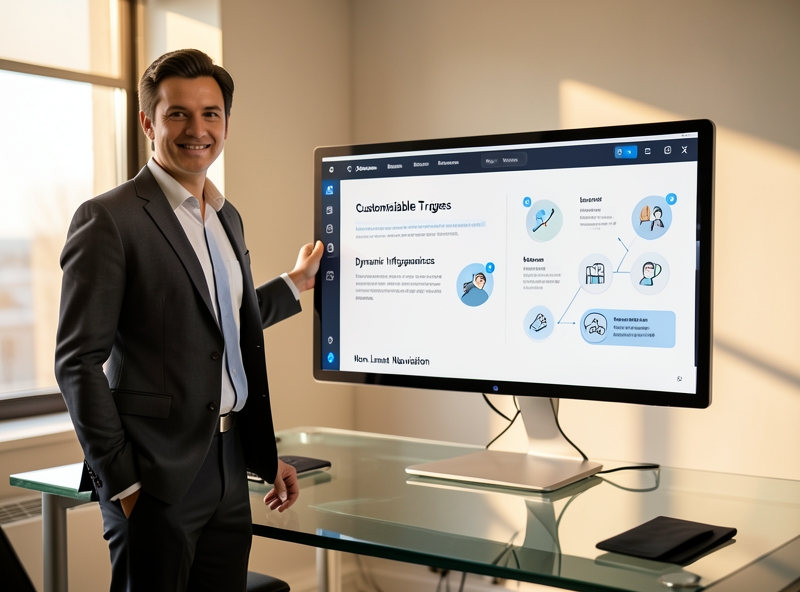
To fully master this technique and elevate your office presentation to professional standards, apply these 4 steps of mindset and practical technical setup right away:
- Step 1: Map and Name Objects (Selection Pane): This is the backbone step that is often overlooked. Go to the Home tab -> Select -> open Selection Pane. Here, clearly name each button (e.g., "Button_Revenue", "Button_HR") and the corresponding content to be displayed. This naming helps you avoid confusion when assigning triggers in the next steps.
- Step 2: Design Hidden/Shown Information Pop-ups: Instead of cramming tons of text onto one slide, create information dialog boxes (Pop-ups). You assign an Entrance Effect to the dialog box, then in the Animation tab -> select Trigger -> click On Click of -> select the exact button name you set in Step 1. To make it more professional, create an "X" button to close the pop-up by assigning an Exit Effect of that dialog box to the "X" button itself.
- Step 3: Build a Smart Navigation Menu (Smart Dashboard): Design a fixed menu bar on the edge of the slide (looking like a website navigation bar). Use the Hyperlink feature combined with Triggers so that when clicking on each item on the menu, the slide will automatically jump to the correct required information segment without going through intermediate slides.
- Step 4: Gamification - Design Live Interactive Minigames: Turn dry internal training sessions or reporting meetings into exciting arenas. You can create visual multiple-choice questions: click on the wrong answer and a red dialog box appears with a warning sound, click on the correct answer and fireworks explode with a congratulatory effect. All operate automatically thanks to the precise Trigger mechanism.
Mastering the Trigger technique not only makes your presentation look modern and professional like a real web application, but more importantly, it asserts sharp office technology thinking, helping you completely master the meeting room and persuade the most demanding clients.
4. The Formula of Combining Morph and Trigger for an Ultimate Slide
Most office presentations today fall into the same rut: the speaker mindlessly clicks the Next button, slides transition dryly, and the audience slowly drifts off to sleep. You have an outstanding product, a massive data system, but the usual linear presentation method has unintentionally "killed" your partner's excitement. To break through that limit, mastering the formula of combining Morph (cinematic motion) and Trigger (interactive navigation) is the ultimate key to helping you transform a tedious report into a top-tier visual interactive experience.
While Morph creates smooth transitions, connecting objects between two slides like a cinematic movie, Trigger acts as a "navigation switch" that allows you to activate that motion only when clicking on a specific object. This combination breaks the top-to-bottom linear structure, putting control of the presentation into your hands or the audience's hands.
"The pinnacle of presentation technology is not showcasing complex special effects, but making complex data and information easy to understand, visual, and instantly interactive."
Here are 3 real-world scenarios to help you immediately apply this formula to your daily work and completely upgrade the look of your slides:
| Real-world Application | How Morph Works | The Role of Trigger | Impact Delivered |
|---|---|---|---|
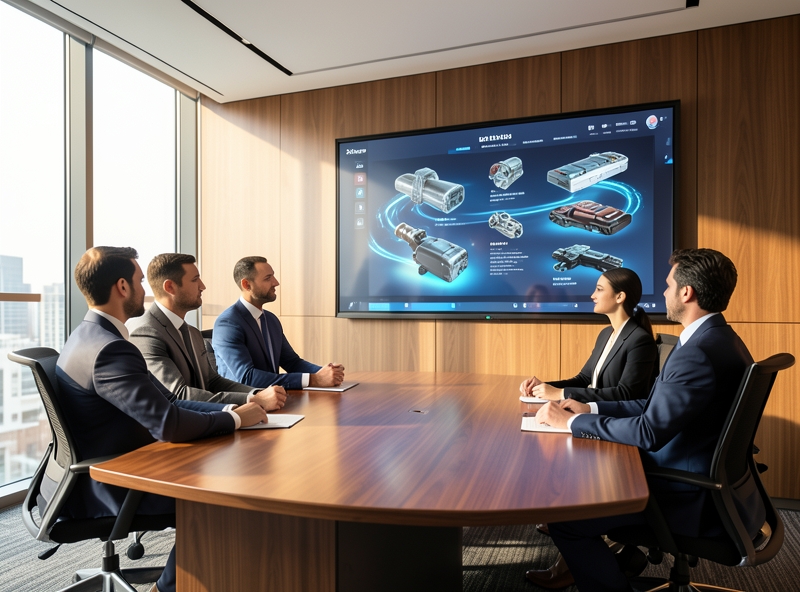
| Angle-Rotating 3D Product Catalog | Automatically calculates and rotates the product model from a front view to an angled view, 360-degree view, or close-up zoom of component details. | Assigns commands to technical specification buttons or different viewing angles on the slide. Wherever you click, the product rotates accordingly. | Customers actively explore the product as if experiencing it on a premium e-commerce site, doubling the persuasion rate. |
| Dynamic Data Dashboard | Smoothly scales chart columns, shifts trendlines, and changes revenue numbers when switching filters. | Places Triggers on category tabs (e.g., "Q1", "Q2", "Market Share"). Whichever category is clicked, the corresponding data automatically displays. | Completely replaces having to manually copy-paste dozens of report slides. The entire financial report fits perfectly on a single slide. |
| Multi-layered Interactive Mind Map | Zooms in on a specific branch of ideas while blurring or shrinking surrounding sub-branches to keep the viewer highly focused. | Triggers are assigned directly to icon buttons on the diagram. Clicking the "Marketing Campaign" button will expand the sub-branches of that campaign. | Keeps the flow of thought seamless, avoiding visual clutter from too much text on the screen while still ensuring a comprehensive overview of information. |
To implement this formula perfectly, the standard setup process consists of 3 core steps. First, design the complete static state of all scenarios on separate slides, ensuring that the objects you want to animate have identical names (using the naming convention with a double exclamation mark "!!" in the Selection Pane, for example: !!Object1). Next, apply the Morph transition to these slides. Finally, create navigation buttons and set up Triggers (On Click of...) linked directly to the slide containing the corresponding motion state. This combination delivers an experience so smooth that viewers will think you are using expensive, specialized software rather than just a simple office presentation tool.
5. Conclusion
Motion effects do not turn a garbage slide into a masterpiece; they only make the clutter move faster. Many people mistakenly believe that cramming a barrage of flying effects will make the presentation look more "sophisticated." In reality, the line between a million-dollar presentation and a "visual disaster" lies solely in how you control Morph and Trigger.
Morph is not merely a transition effect; it is a spatial connection mindset. When used correctly, Morph thoroughly solves the listener's biggest pain point: distraction. By guiding the eye from point A to point B smoothly, Morph keeps the audience's train of thought unbroken. Meanwhile, Trigger transforms slides from one-dimensional to an active interactive experience, putting the power to decide the flow of information right into your hands in real time.
| Criteria | Amateur Mindset (Abuse) | Expert Mindset (Effective Minimalism) |
|---|---|---|
| Purpose of Use | Decorating the slide so it looks less empty. | Explaining the structure and relationship between objects. |
| Frequency of Appearance | Every slide has flying effects and continuous motion. | Only appears when there is a need to change perspective or deconstruct complex data. |
| Viewer Experience | Dizzy, fatigued, not knowing what the main content is. | Natural, easy to understand, unconsciously drawn into the message. |
To fully master these two ultimate weapons, always keep in mind the 3-second rule: If a motion effect lasts longer than 3 seconds or does not help the viewer understand the content faster in the first 3 seconds, delete it. Minimalism is the pinnacle of sophistication. Start by optimizing the content and tightly organizing the layout before thinking about adding any motion.

Enhancing your aesthetic mindset is not an overnight story. It is a whole process of "training your eyes." Instead of searching for ready-made templates online, practice observing how movies transition scenes, how top mobile apps design user experience (UX/UI), or how major brands showcase new products. Learn from the most natural movements in life to bring them into your slides smoothly and subtly.
"Office technology was not born for us to show off technical skills, but to simplify the most complex things."
Turn every presentation slide into a calculated work of art. Use Morph to connect, Trigger to interact, and minimalism to assert your professional status.